


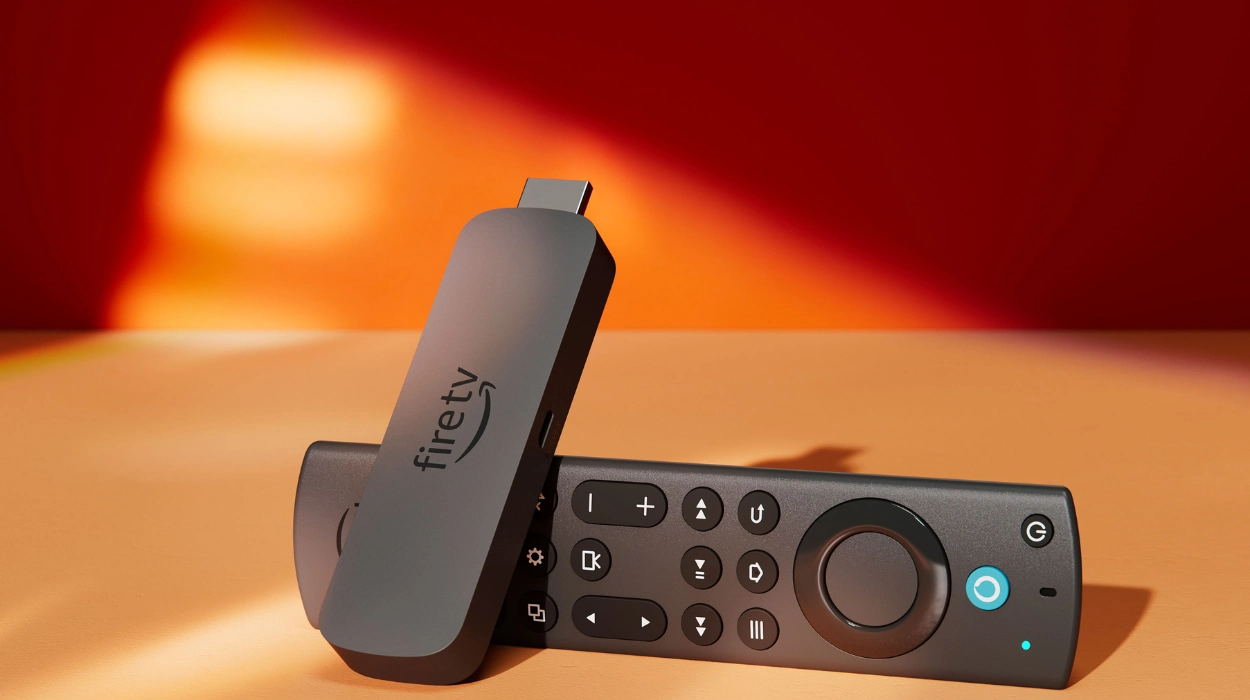
The Amazon Fire TV Stick is a compact streaming media player that connects to a television’s HDMI port and delivers internet-based video, audio, and gaming content. It runs on Amazon’s Fire OS or, in newer models, Vega OS, and it converts any HDMI-equipped television into a smart streaming device. This article explains every practical aspect of the Fire TV Stick, including model selection, setup, optimisation, troubleshooting, security, and future development.
- What Is an Amazon Fire TV Stick?
- What Are the Different Fire TV Stick Models Available Today?
- How Do You Choose the Right Fire TV Stick for Your TV?
- How Do You Set Up a Fire TV Stick for the First Time?
- What Are the Best Settings to Optimise Fire TV Stick Performance?
- How Do You Fix Common Fire TV Stick Problems?
- How Can You Use Alexa Voice Control on a Fire TV Stick?
- What Apps and Services Work Best on a Fire TV Stick?
- How Do You Secure and Manage Privacy on a Fire TV Stick?
- What Accessories Improve the Fire TV Stick Experience?
- What Is the Future of Fire TV Stick Technology?
What Is an Amazon Fire TV Stick?
The Amazon Fire TV Stick is a small HDMI streaming device made by Amazon that delivers apps, live TV, music, and games to any television. It plugs directly into a TV’s HDMI port, draws power through a USB or wall adapter, and connects to home Wi-Fi to stream content from services such as Netflix, Prime Video, and YouTube.
Amazon introduced the first Fire TV Stick in November 2014 as a low-cost alternative to the larger Fire TV set-top box. The device targeted consumers who wanted smart TV features without replacing an existing television. Since 2014, Amazon has released more than ten hardware generations, each adding faster processors, higher resolution support, and improved wireless connectivity. The Fire TV Stick competes directly with the Roku Streaming Stick, Google Chromecast with Google TV, and Apple TV in the streaming media player category.
The device functions through three core components: a processor and memory chip for running apps, a Wi-Fi and Bluetooth radio for connectivity, and an HDMI output for video and audio transmission. A remote control, typically the Alexa Voice Remote, pairs with the stick over Bluetooth to control playback, volume, and voice search.
Why the Fire TV Stick Exists in the Streaming Market
Traditional televisions manufactured before 2015 generally lack built-in internet connectivity or app stores. The Fire TV Stick solves this gap by adding a full app ecosystem to any HDMI television at a fraction of the cost of a new smart TV. This positioning has made it one of the best-selling streaming devices worldwide, with Amazon reporting hundreds of millions of Fire TV devices sold globally since launch.
What Are the Different Fire TV Stick Models Available Today?
Amazon currently sells four primary Fire TV Stick models: Fire TV Stick HD, Fire TV Stick 4K Select, Fire TV Stick 4K Plus, and Fire TV Stick 4K Max. Each model differs in resolution, processor speed, Wi-Fi standard, and operating system. Choosing the correct model depends on the television’s resolution and the home network’s speed.
Amazon reorganised its Fire TV Stick lineup in 2025 and 2026 to separate devices by value tier, mainstream use, and performance. The current four-model structure replaces the older naming system that included the “Lite” and standard “4K” labels.
Fire TV Stick HD
The Fire TV Stick HD is the entry-level model, priced at approximately 35 US dollars at launch. It supports 1080p high-definition streaming with HDR10 visuals and includes 8 gigabytes of storage with 1 gigabyte of RAM. The 2026 version of this model runs Vega OS, Amazon’s custom Linux-based operating system, which replaces the Android-derived Fire OS used in earlier sticks. This shift removes the ability to sideload third-party applications through APK files, a change from previous HD models.
Fire TV Stick 4K Select
The Fire TV Stick 4K Select is the value-tier 4K model in the 2025-2026 lineup. It supports Ultra HD 4K resolution and runs on Vega OS. This model targets buyers who want 4K resolution without paying for the fastest Wi-Fi standard or maximum processing power.
Fire TV Stick 4K Plus
The Fire TV Stick 4K Plus adds Wi-Fi 6 support to the 4K Select’s feature set. Wi-Fi 6 reduces network congestion in homes with multiple connected devices and improves streaming stability during peak usage hours. This model is positioned as the mainstream 4K option for most households.
Fire TV Stick 4K Max
The Fire TV Stick 4K Max, in its second generation released in 2023, remains the highest-performing stick in the lineup. It includes 16 gigabytes of storage, a faster CPU and GPU than the other three models, and Wi-Fi 6E connectivity, which uses the 6GHz band for reduced interference. This model is recommended for users who game through Amazon Luna, run multiple demanding apps, or own a router that supports Wi-Fi 6E.
| Model | Max Resolution | Storage | Wi-Fi Standard | Operating System |
|---|---|---|---|---|
| Fire TV Stick HD (2026) | 1080p HD | 8 GB | Wi-Fi 5 | Vega OS |
| Fire TV Stick 4K Select | 4K Ultra HD | 8 GB | Wi-Fi 5 | Vega OS |
| Fire TV Stick 4K Plus | 4K Ultra HD | 8 GB | Wi-Fi 6 | Fire OS |
| Fire TV Stick 4K Max (2nd Gen) | 4K Ultra HD | 16 GB | Wi-Fi 6E | Fire OS |
How Do You Choose the Right Fire TV Stick for Your TV?
Match the Fire TV Stick model to the television’s native resolution and the household’s internet speed. A 1080p TV only needs the HD model, while a 4K TV requires at least the 4K Select for full-resolution playback. Buying a higher-tier model than the television supports wastes money without improving picture quality.
Three factors determine the correct model choice: display resolution, router capability, and app usage intensity. A television manufactured with a native 4K panel requires a 4K-capable stick to output matching resolution; pairing a 4K TV with the HD-only stick caps output at 1080p regardless of the content source. Households with routers that support Wi-Fi 6 or Wi-Fi 6E should select the 4K Plus or 4K Max to take advantage of the faster wireless standard, since older Wi-Fi 5 sticks cannot use those bands even if the router supports them.
Storage capacity also affects the decision. Users who install many streaming apps, games, or Alexa skills benefit from the 16 gigabytes of storage on the 4K Max, compared to the 8 gigabytes standard on the other three models. Limited storage can slow app installation and force users to uninstall apps periodically.
How Do You Set Up a Fire TV Stick for the First Time?
Setting up a Fire TV Stick requires five steps: connect the HDMI port, plug in power, select the correct HDMI input, sign in with an Amazon account, and connect to Wi-Fi. The full setup process typically takes under ten minutes on a stable internet connection.
Physical Connection Steps
Insert the Fire TV Stick into an open HDMI port on the television. Connect the included USB power cable to the stick and plug the other end into either the television’s USB port or the included wall adapter. Amazon recommends the wall adapter for 4K models, since USB ports on some televisions do not supply enough power for full performance. Switch the television’s input source to match the HDMI port used by the stick.
Software Configuration Steps
Once powered on, the Fire TV Stick displays an on-screen setup wizard. Users select a Wi-Fi network, enter the password, and sign in using an existing Amazon account or create a new one. The device then downloads a system update automatically before displaying the home screen. After the update completes, users can install streaming apps directly from the Amazon Appstore, which comes pre-installed on every Fire TV Stick.
What Are the Best Settings to Optimise Fire TV Stick Performance?
Optimising a Fire TV Stick involves adjusting display resolution, enabling automatic app updates, clearing app cache regularly, and disabling unused background data collection features. These adjustments reduce buffering, improve app load times, and extend the device’s usable lifespan.
Navigate to Settings, then Display and Sounds, to match the output resolution to the television’s native capability. Selecting a resolution higher than the TV supports can cause a blank screen or reduced picture quality. Under Settings, then Applications, users can view storage used by each app and clear cached data for apps that load slowly. Enabling automatic app updates under Settings, then Applications, then Appstore ensures installed apps receive security patches and performance fixes without manual intervention.
Restarting the Fire TV Stick weekly clears temporary memory buildup that can slow navigation over time. This can be done through Settings, then My Fire TV, then Restart, without physically unplugging the device.
How Do You Fix Common Fire TV Stick Problems?
Most Fire TV Stick problems fall into three categories: connectivity failures, remote pairing issues, and app crashes. Restarting the device resolves the majority of these issues within two minutes. Persistent problems typically require a factory reset or a hardware replacement.
Connectivity and Buffering Issues
Wi-Fi signal strength is the leading cause of buffering and slow app loading. Moving the router closer to the television, switching to the 5GHz band, or upgrading to a Wi-Fi 6-compatible stick reduces buffering on 4K content. Weak signal strength appears under Settings, then Network, where users can view a numeric signal reading.
Remote Pairing Problems
If the included Alexa Voice Remote stops responding, users should replace both batteries first, since low battery power is the most common cause. If the remote still fails to pair, holding the home button for ten seconds triggers automatic re-pairing with the stick. A remote that fails to pair after these steps typically requires replacement.
App Crashes and Freezing
Individual app crashes usually result from outdated app versions or corrupted cache data. Uninstalling and reinstalling the affected app resolves most crash issues. If the entire home screen freezes, unplugging the stick for ten seconds and reconnecting power performs a hard restart that clears temporary memory errors.
How Can You Use Alexa Voice Control on a Fire TV Stick?
The Alexa Voice Remote included with every Fire TV Stick allows hands-free control through voice commands for searching content, adjusting volume, and controlling smart home devices. Pressing the microphone button activates voice recognition without requiring a separate Echo speaker.
Users can say commands such as “search for comedy movies” or “open Netflix” to navigate without using the directional pad. The Alexa integration also supports smart home control, allowing users to dim compatible lights or check security cameras displayed directly on the television screen. This functionality requires the smart home devices to already be linked to the same Amazon account through the Alexa app.
What Apps and Services Work Best on a Fire TV Stick?
The Amazon Appstore on Fire TV Stick includes major streaming services such as Netflix, Disney+, Prime Video, YouTube, Hulu, and Max, along with live TV apps and Amazon Luna cloud gaming. App availability depends on the operating system version, with Vega OS models supporting a curated app set rather than open sideloading.
Fire OS models, including the 4K Plus and 4K Max, support both Appstore downloads and manual APK sideloading for apps not officially listed. Vega OS models, including the 2026 Fire TV Stick HD, restrict installation to the official Appstore only. This distinction matters for users who rely on niche or region-specific streaming apps not distributed through Amazon’s store.
Amazon Luna, a cloud gaming service, runs on all current-generation Fire TV Stick models and requires a compatible Bluetooth game controller, since the standard Alexa remote does not support gaming input.
How Do You Secure and Manage Privacy on a Fire TV Stick?
Fire TV Stick privacy settings allow users to disable personalised advertising, limit voice recording storage, and manage which apps can access the microphone. Adjusting these settings under Settings, then Preferences, then Privacy Settings, reduces the amount of usage data collected by Amazon.
Users can delete stored voice recordings individually or set automatic deletion after three or eighteen months through the Alexa Privacy settings in the Alexa app. Disabling the “Interest-based Ads” toggle stops Amazon from using Fire TV usage data to personalise advertising shown on the home screen. Enabling a PIN code under Parental Controls restricts purchases and app installations, which is relevant for households with children who share the same device.
What Accessories Improve the Fire TV Stick Experience?
A powered HDMI extender cable, a Bluetooth game controller, and a surge-protected power strip are the three accessories most likely to improve Fire TV Stick performance and longevity. These accessories address common physical limitations of the compact stick design.
An HDMI extender cable moves the stick away from the television’s HDMI port, preventing overheating in televisions with recessed or poorly ventilated port areas. A Bluetooth game controller, compatible with Amazon Luna and select apps, expands the device beyond passive video streaming into interactive gaming. A surge-protected power strip protects the stick’s internal components from voltage spikes, which can damage the device during electrical storms or power grid fluctuations.
Explore More about Technology:
Samsung Galaxy August 2026 Event: Date, Rumours and News
Google Pixel 11 Pro: Latest News, Specs and Price
What Is the Future of Fire TV Stick Technology?
Amazon is transitioning its Fire TV Stick lineup from Fire OS to Vega OS, a custom Linux-based platform that began shipping on entry-level models in 2026. This shift indicates that future Fire TV Stick generations will move away from Android compatibility across the entire product line.
The global streaming media player market, which includes the Fire TV Stick alongside Roku and Chromecast devices, is projected to grow to approximately 45.87 billion US dollars by 2030, expanding at a compound annual growth rate near 4.7 per cent. This growth reflects continued global demand for affordable smart TV conversion devices, particularly in regions where smart TV adoption remains lower than in North America. Amazon’s hardware roadmap indicates continued adoption of USB-C charging ports and Wi-Fi 6 as baseline features across future budget-tier models, moving these capabilities beyond the current premium-only positioning.
The move to Vega OS also signals tighter control over app distribution and device security, trading some flexibility, such as sideloading, for a more streamlined and secure user experience. Households currently using older Fire TV Stick generations, including the 2020 third-generation model or the 2021 4K Max, can expect continued software support in the near term, though new features will increasingly appear first on Vega OS-based hardware.